Employee Work Request Notifications Preferences
To set employee work request notifications preferences, follow the steps below.
- Click on the My Business link available at the top of the screen. Select Employees from the sub-menu that appears, as shown below.

A list of employees is displayed.
- Click on the target employee, in Name column. The View Employee Details page is displayed. You can see four tabs as Details, List of Jobs, Messages, and Preferences.
- Select Preferences tab, and you can see different notifications, as shown below.
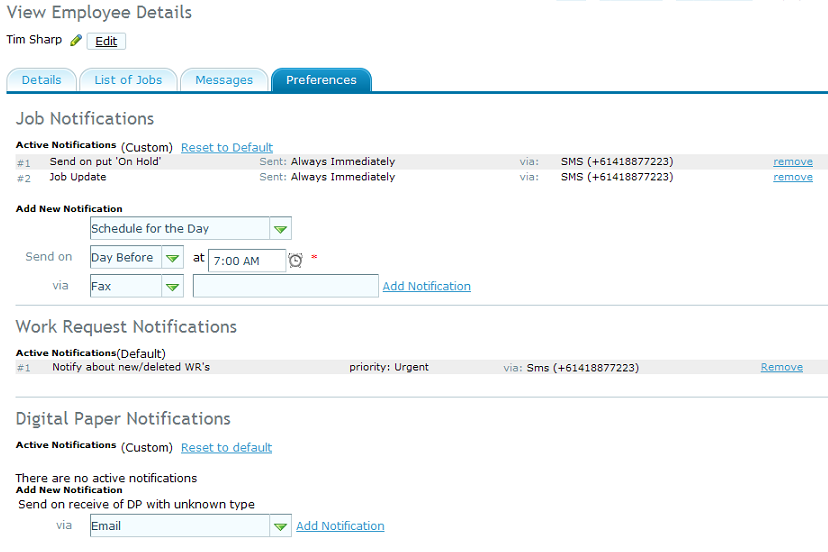
- Under Work Request Notifications section, you can see the work request name, priority, how it was assigned (sms, fax or phone). You can also click on remove link to remove the corresponding work request notification.
As you remove a work request, you get an option to add the new work request notification setting, as shown below.
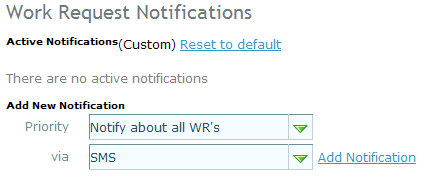
- Select a priority and the mode of communication from Priority and via drop-down lists.
- Click on Add Notification link and the new settings are added.
You can click on Reset to default link to restore the default settings of work request for this specific employee. Please see set default notification settings for work requests for all employees, for default settings.